What Is Zen IPTV Player?
If you have been shopping around for a good IPTV player, Zen IPTV is one worth taking seriously. It launched on Google Play back in September 2023 and has since grown into one of the most cross-platform players out there, covering Apple TV, iPhone, iPad, Mac, Android TV, Google TV, and Windows. That kind of device reach is genuinely impressive and makes it a strong contender for anyone who switches between screens throughout the day.
The thing that sets Zen IPTV apart from a lot of its rivals is the interface. Where some players feel like they were designed purely for function, Zen actually looks good. Channels load quickly into a clean, modern layout and the navigation feels intuitive rather than something you need to figure out. For UK viewers who want a proper living room experience, that matters.
The app supports both M3U playlist URLs and Xtream Codes API credentials, which covers virtually every IPTV UK service on the market. As of early 2026 it had passed 100,000 downloads on Google Play and continues to receive regular updates, with version 1.9.2 dropping in January 2026.
Installing Zen IPTV on Apple TV
Apple TV users have a straightforward path to getting Zen IPTV installed. The app is available directly from the Apple App Store, so no sideloading or workarounds are needed.
Step-by-Step Installation
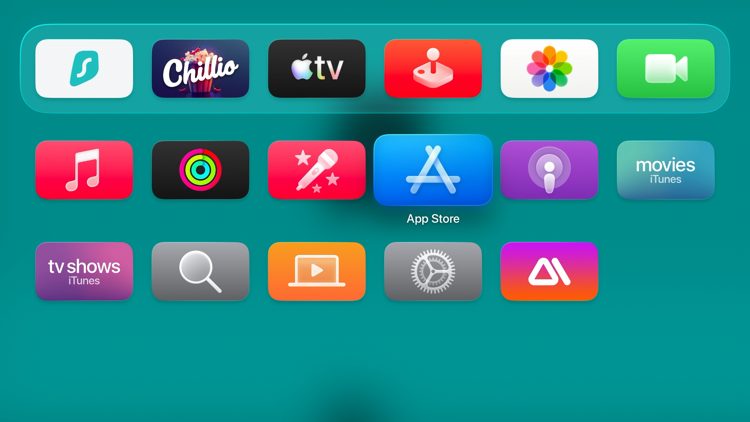
- From your Apple TV home screen, open the App Store.
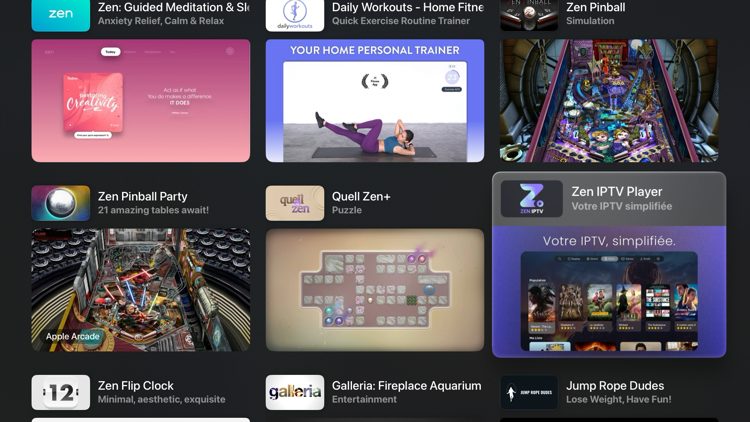
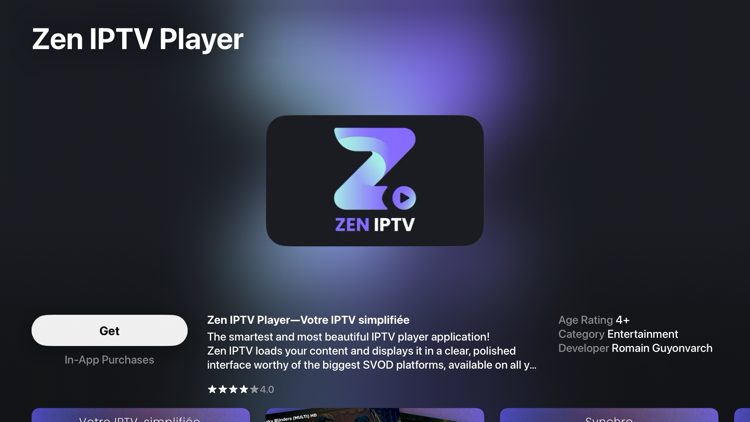
- Click the search icon and type Zen. Look for the result labelled Zen IPTV Player with the purple and black icon.
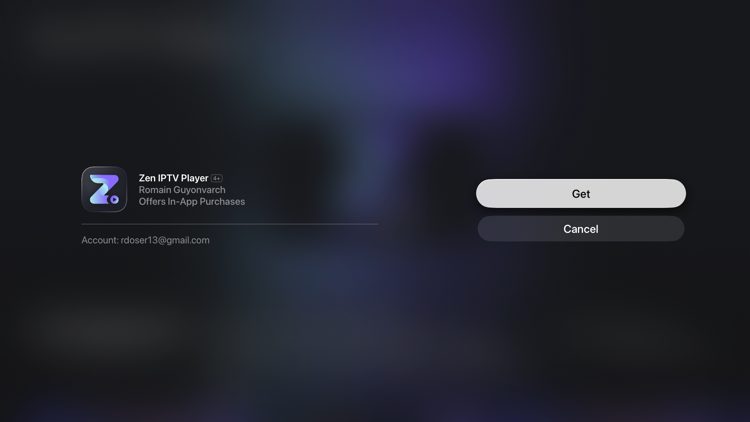
- Select it and click Get or the download icon to install.
- Once installed, open the app. You will be taken to a login screen. If you do not have an account yet, scroll down and tap No Account yet? Sign up.
- Enter your email address and create a password. You will receive a verification email, so open that and click the confirmation link before proceeding.
- It is worth installing the Zen IPTV app on a secondary device like your iPhone or Android phone as well. This makes the initial playlist setup much easier, since typing long URLs on an Apple TV remote is awkward.
- Log into the app on your phone, create a profile with whatever name you like, and save it.
- Back on your Apple TV, relaunch Zen IPTV and log in. Your profile should now appear.
- Select your profile and tap the option to add a playlist. If you only have an M3U URL, tap I only have a link and paste it in. If you use Xtream Codes, enter those credentials on the main login screen instead.
- Wait for the playlist to import and you are done. Live channels will load in the Live tab straight away.
One small note on the Apple TV setup: if the app does not refresh properly after logging in, try offloading and reinstalling it from Settings. This clears any cached state and tends to fix login hiccups.
Installing Zen IPTV on Android TV and Google TV
For Android TV and Google TV devices, including Nvidia Shield, Chromecast with Google TV, and many smart TV brands, the process is even simpler. Open the Google Play Store, search for Zen IPTV Player, install it, and follow the same account setup and playlist steps described above.
The experience on Android TV is slightly more fluid for initial setup because entering text is easier, particularly if you have a phone keyboard linked. Either way, once your M3U playlist or Xtream Codes are in, the experience is the same across platforms.
Setting Up Your UK IPTV Subscription in Zen
This is the step that makes everything work. Your IPTV setup guide from your provider will include either an M3U URL or an Xtream Codes login consisting of a server URL, username, and password. Both work perfectly with Zen IPTV.
Adding an M3U Playlist
After creating your profile, go to the playlist section and choose to add a new source. Select the M3U option, paste in your URL, give it a name, and tap Add. The app will pull down all your channels and sort them into categories.
Adding an Xtream Codes Login
Choose the Xtream Codes option instead and enter your server address, username, and password exactly as provided by your service. This method tends to give you access to more organised categories, an EPG for the TV guide, and sometimes VOD content depending on your plan.
Most good British IPTV subscriptions include UK channels like BBC One, ITV, Channel 4, Sky Sports, BT Sport, and hundreds of others across entertainment, news, and sport. Once your playlist is loaded you will see these organised in the Live tab.
What the App Looks Like in Use
Zen IPTV organises content into a set of clear tabs: Live, Movies, Series, Replay, Profiles, and Settings. On the Live tab, tapping a channel launches playback instantly in full screen. Within full screen you get controls for audio track selection, subtitle switching, a sleep timer, and basic stream settings.
The EPG (electronic programme guide) works well when your provider supports it, showing a grid-style channel schedule that lets you browse what is on and coming up. For UK viewers used to a proper TV guide, this makes a noticeable difference to how usable the service feels day to day.
The Replay feature, available on some providers, lets you watch content from the past few hours or days depending on what your subscription includes. Not every playlist supports this but when it works, it is genuinely useful.
Free vs Premium: What Do You Get?
Zen IPTV has a free tier that covers live channel playback, which is fine for basic use. However, if you want access to the Movies and Series tabs, device syncing, favourites management, continue watching, and offline downloads, you will need the premium version called Zen Player Access.
Plans come with a free trial period and can be cancelled at any time, which makes it low risk to try. Whether the premium tier is worth paying for separately depends on whether your IPTV provider already includes VOD content through Xtream Codes, since in that case you may already have movies and series via the playlist itself rather than needing the app's own premium layer.
For purely live TV use, the free version is perfectly functional and does not feel restricted in any meaningful way during day-to-day viewing.
Zen IPTV Pros and Cons
What Works Well
- Clean, modern interface that looks at home on a big screen TV
- Broad device support including Apple TV, Android TV, iOS, Mac, and Windows
- Available on official app stores with no sideloading required
- Regular updates and active development since 2023
- Supports both M3U and Xtream Codes for maximum compatibility
- EPG guide works well with supported providers
Things to Consider
- Movies and Series require the paid premium tier
- Account creation is required even for basic use
- The multi-step setup (including phone-based profile creation) can feel a bit involved for first-timers
- Relatively newer app compared to long-standing alternatives
Is Zen IPTV Worth Using?
For UK IPTV viewers, Zen IPTV Player is a genuinely strong option. The interface quality puts it ahead of many older players that have never been updated to feel modern, and the fact it is available on both the Apple App Store and Google Play means you do not have to jump through hoops to get it running.
It pairs particularly well with a quality subscription that provides a well-organised M3U playlist or Xtream Codes. If your provider delivers a clean channel list with proper UK channel categories, Zen will present it in the best possible light.
If you are still looking for a reliable subscription to go with your player, you can try ApolloTV free and see how it works in Zen before committing. The combination of a well-structured UK IPTV playlist and a polished player like Zen makes for a noticeably better viewing experience than cobbling together free alternatives.
Quick Tips for the Best Experience
- Use a wired ethernet connection on your streaming device where possible. Wi-Fi introduces latency and occasional drops that a cable eliminates.
- If channels buffer on first load, check whether the issue is with your internet connection or the stream itself by switching to a different channel and back.
- Set your EPG source in Zen's settings if your provider supplies one. This unlocks the full TV guide feature and makes the app far more useful.
- Keep the app updated. Zen releases regular patches and older versions can occasionally have stability issues that newer releases fix.
- If you have multiple devices, log into the same Zen account on all of them so your profiles and playlists stay in sync.